
I you have a large gap of white space, or black and white stripes between the list of programs in the add/remove programs, there is a simple solution to fix this problem. Usually this problem is caused by some cached data on installed programs that has become incorrect, so you will need to delete the ARPCache registry directory.
Open 'Regedit' and delete the 'HKEY_LOCAL_MACHINE\SOFTWARE\Microsoft\Windows\CurrentVersion\App Management\ARPCache' key.
Hopefully, the problem will be solved.
Showing posts with label tips. Show all posts
Showing posts with label tips. Show all posts
If you need to replace your motherboard with a new one and you do not want to reinstall the OS (windows), then this is the right guide for you.
You will need to execute the following steps:
1. Boot your PC using the existing (old) motherboard.
2. Open Control Panel -> System and from the Device Manager, open up the "IDE ATA/ATAPI Controllers" section. On a typical system there will be three or four entries under this - the controller/controllers itself, and then the primary/secondary IDE channels. Double-click on the entry for the controller/controllers, and change the driver to the generic default Microsoft "Standard Dual-Channel PCI IDE Controller".
3. If you have a motherboard with an Intel CPU and your new motherboard is AMD based you will need to rename the intelppm.sys file located in the c:\windows\system32\drivers\ directory.
4. Shut down your PC.
5. Replace the old motherboard with the new one as required.
6. Boot your PC in SAFE MODE (Press the F8 key repeatedly until a menu appears. Use your arrow keys to highlight the 'Safe Mode' option, and then press ENTER).
7. After yet another reboot you will need to install the latest drivers. That's it!
Note: You can use this guide to upgrade a motherboard without reinstaling Windows XP or Windows 2000.
Follow @_pcoptimize
You will need to execute the following steps:
1. Boot your PC using the existing (old) motherboard.
2. Open Control Panel -> System and from the Device Manager, open up the "IDE ATA/ATAPI Controllers" section. On a typical system there will be three or four entries under this - the controller/controllers itself, and then the primary/secondary IDE channels. Double-click on the entry for the controller/controllers, and change the driver to the generic default Microsoft "Standard Dual-Channel PCI IDE Controller".
3. If you have a motherboard with an Intel CPU and your new motherboard is AMD based you will need to rename the intelppm.sys file located in the c:\windows\system32\drivers\ directory.
4. Shut down your PC.
5. Replace the old motherboard with the new one as required.
6. Boot your PC in SAFE MODE (Press the F8 key repeatedly until a menu appears. Use your arrow keys to highlight the 'Safe Mode' option, and then press ENTER).
7. After yet another reboot you will need to install the latest drivers. That's it!
Note: You can use this guide to upgrade a motherboard without reinstaling Windows XP or Windows 2000.
 | This book is more than a manual of techniques (including details of how to make a low-cost DIY camera mount) and examples; it also provides a concise photographic atlas of the whole of the nearside of the Moon – with every image made using a standard digital camera – and describes the various lunar features, including the sites of manned and robotic landings. The simple family camera can reveal a world of shape and form, pointing to a time of great change on another world where huge impacts produced giant craters on a scale we can only guess and mountain chains that run for hundreds of kilometres. |
How to Photograph the Moon And Planets With Your Digital Camera
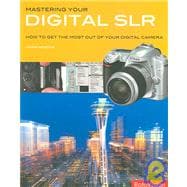 | Mastering your Digital SLR is the definitive guide for the sophisticated digital camera enthusiast who wants to make the leap from compact digital or film SLR to digital SLR (DSLR) for more advanced digital photography, or existing SLR for owners who are ready for the next level of experimentation and expertise. |
This comprehensive bible of the digital SLR employs a practical, step-by-step approach, to enable the reader to achieve critical image quality and professional results. It explains the intimate workings of the DSLR and illuminates every aspect of image capture and processing in a thorough, practical jargon-free manner, accompanied by inspirational illustrations.
Mastering Your Digital Slr: How to Get the Most Out of Your Digital Camera
 | Here's the definitive companion for photographers who want to get the best out of their digital SLRs. This accessible, colorful blend of step-by-step tutorials, quick fixes, and bullet-point tips offers the perfect antidote to dry, boring technical manuals. |
Everything from digital workflow to advanced manipulation techniques, filters, special effects, and output options is presented in bite-sized chunks, accompanied by illuminating illustrations. And no jargon! 500 Digital SLR Photography Hints, Tips, and Techniques allows photographers everywhere to take great pictures and get professional results.
500 Digital Slr Photography Hints Tips and Techniques: The Easy All in One Guide to Those Inside Secrets for Better Digital Photography
Subscribe to:
Posts (RSS)


